
GB4 Emulator: Retro Gameboy
Metaverse LabsTools
4.33.87K Reviews
- Version
- 9.2.3
- Installs
- 5.00M
- Age Rating
- Everyone
Screenshots
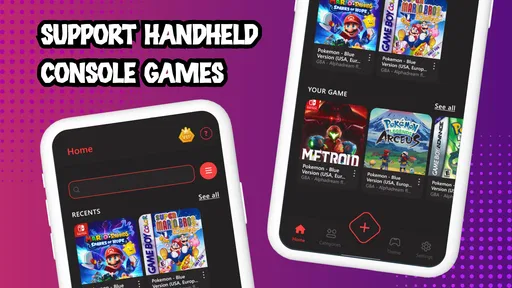

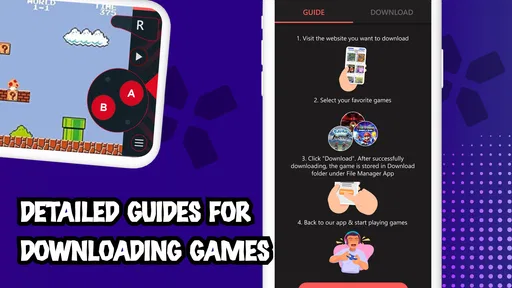
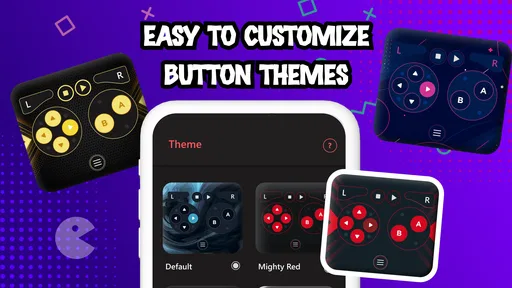
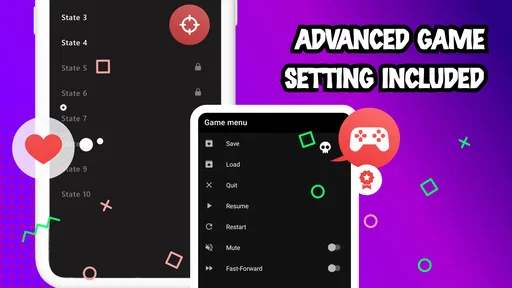
Our Review of GB4 Emulator: Retro Gameboy
 Analysis by Appyee
When I’m choosing a retro game emulator, I care less about a long feature list than about how quickly I can get from opening the app to playing a game I already own. GBA4 Emulator: Classic Gameboy is aimed at that straightforward kind of use: it gives a phone a way to run Game Boy Advance titles, without asking me to learn a complicated setup first. It is a free tools app from Metaverse Labs, and its simple starting point is appealing if you want to revisit handheld classics rather than manage a whole library of gaming systems.
What to check before you install
The first practical question is whether you already have game files you are entitled to use. This emulator loads your own ROMs; it is not a catalog of games to browse and download inside the app. That distinction matters. If you expect to install an emulator and immediately choose from a built-in collection, this is not that experience. Before getting started, make sure your files are accessible on your device and that your use of them complies with the laws that apply where you live.
It is also worth deciding how you like to play. On-screen controls are convenient when you are away from home, while a physical controller may feel more natural for longer sessions or games that need precise inputs. The app offers control and screen adjustments, so there is room to make the layout more comfortable, but a phone still does not feel exactly like a dedicated handheld. I would treat those options as ways to improve a mobile setup, not as a promise that every game will feel perfect on every screen.
Why the simple approach works
Once I had a compatible game file ready, the appeal was how little ceremony there was between launching the app and getting into play. The interface is easy to follow, and loading a ROM does not require me to dig through a maze of settings. That makes the app a sensible pick for someone who wants a practical emulator rather than a project to configure.
The most useful convenience for everyday play is saving progress at a chosen moment. A save state can help when I need to stop in the middle of a section rather than reach the game’s next built-in save point. I would use it as a flexible pause button, while still keeping regular in-game saves where the game supports them. That habit gives me a fallback if I switch games or close the app unexpectedly, instead of relying entirely on one kind of save.
Speeding up play is another option with a clear purpose: it can make repetitive stretches less tedious. I would use it selectively for familiar sections, menus, or other slow moments, then return to normal speed when timing and sound matter. Fast-forward is not automatically an improvement; using it during a first playthrough can make it easier to miss dialogue, music, or small details that are part of the game’s charm.
How it fits into a normal day
Imagine having a short wait before an appointment and wanting to play for a few minutes without committing to a long session. A phone is already with you, and a save state lets you put the game down at a convenient point. That is where this kind of emulator makes sense: it turns spare time into a chance to continue a familiar adventure. For a longer session at home, I would connect a controller if that suits the game and adjust the display until the controls do not obscure too much of the action.
There is a small but important trade-off in that routine. Touch controls keep everything in one device, but fingers can cover part of the screen and some games are less comfortable to play without physical buttons. A controller can help, though it adds another thing to carry and connect. I would try the default layout first, then change only the controls that genuinely get in the way; unnecessary tweaking can take longer than simply starting a game.
Where other emulator choices may suit you better
Compared with broader multi-system emulators, this app’s focus is its strength if your interest is specifically Game Boy Advance play. You do not need to choose among unrelated console settings just to get to a GBA game. The other side of that focus is that someone who wants one app for several retro systems may prefer a more general emulator, even if its menus take longer to learn.
A dedicated handheld is a different alternative. It can offer physical controls without attaching a separate controller, which may be more comfortable for frequent or lengthy play. A phone-based emulator is easier to keep with you and can make sense for occasional sessions, but it depends on your comfort with touch controls or the extra step of connecting a controller. If what you want is the most authentic handheld feel, a phone app may not be the right substitute.
There is also a difference between emulation and playing on original hardware. This app offers convenience and tools such as save states and speed adjustment, while original hardware provides the feel of the device the games were made for. Neither choice is best for everyone. I would pick the emulator for flexible mobile play, and consider original hardware if the physical experience itself is the main reason I want to revisit these games.
Getting Started with GBA4 Emulator
First things first — getting the GBA4 Emulator: Classic Gameboy set up is a breeze. The app is available for both Android and iOS, making it easily accessible no matter your device preference. Just head over to your app store, search it up, and voila! Downloading and installing it took less time than it takes to brew a cup of coffee.
User Interface and Experience
When you first open the app, you’re greeted with a clean, intuitive interface. It’s like the developers knew exactly what we needed — no frills, just straightforward functionality. The menu is easy to navigate, and within seconds, I was already loading up my favorite ROMs. I appreciated that I didn’t have to go through a labyrinth of options just to get started.
Speaking of ROMs, the app allows you to load your own. This means you can play any Game Boy Advance game you have in your collection. I found this feature particularly handy, as I could immediately jump into my all-time favorites like Pokémon Emerald and Mario Kart: Super Circuit. Just remember, it’s crucial to own the games you’re emulating for legal reasons.
Performance and Features
Now, let’s talk performance. I was thoroughly impressed with how smoothly the GBA4 Emulator ran games. There were no lags or hiccups, and the graphics were crisp and clear. It felt as though I was holding a real Game Boy Advance in my hands. The sound emulation was on point too, bringing back all those nostalgic tunes we love.
One of my favorite features is the save state functionality. This allows you to save your progress at any point in the game, which is a lifesaver for those tricky levels or boss fights. Plus, you can also speed up the gameplay. This is a game-changer when you’re grinding through repetitive sections.
Customization and Compatibility
Customization options are plentiful, letting you tailor the experience to your liking. You can tweak the controls, adjust the screen size, and even set up controller support if you prefer physical buttons. I connected my Bluetooth controller, and it worked seamlessly.
Compatibility-wise, the emulator supports a wide range of games. I threw a variety of ROMs at it, and it handled them all with ease. It’s worth noting that while the app supports a vast library, there may be rare instances where certain ROMs don’t perform perfectly, but I didn’t encounter any major issues during my time with it.
Cost, support, and the limits to keep in mind
The app is free to install, with optional in-app purchases priced from $1.49 to $29.99 per item. I would start with the free version and decide whether any paid option is useful to me only after trying the emulator with my own files. An optional purchase is not a reason to assume that a particular feature is included or required, so it is sensible to check the purchase details in the app before spending money.
It has an Everyone age rating, a 4.4 average from around 170,000 ratings, and more than 5 million installs. Those figures suggest that many people have tried it, but they cannot tell me whether a specific game file will run well on my device or whether I will like the controls. The current version is 9.1.3, and the listed minimum Android requirement is 7.0; if I use an older phone, I would check compatibility before planning a session around it.
The main friction is not the act of opening the emulator; it is preparing and managing the files that the emulator needs. Someone unfamiliar with ROMs may find that step confusing, and people who expect an included game collection should choose a different kind of gaming app. Compatibility can also vary from one file or device to another, so I would test a game briefly before investing time in a long run. If a title behaves oddly, checking that the file is a legitimate, intact copy is a more useful first step than changing every setting at once.
Who I would recommend it to
I would recommend this app to people who already have legal access to Game Boy Advance game files and want a convenient way to play them on a phone. It is especially appealing if you value quick setup, flexible stopping points, and the option to use either touch controls or a controller. It also makes sense for someone returning to a few familiar games rather than building a complicated retro-gaming setup.
I would skip it if I wanted games supplied inside the app, if I did not want to handle ROM files, or if I needed the feel of a dedicated handheld with buttons always in place. It may also be a poor match for someone who plans to play for hours using touch controls but dislikes virtual buttons. In those cases, original hardware, a handheld gaming device, or a broader emulator that better fits the systems you use may be more satisfying.
The Verdict
So, is the GBA4 Emulator: Classic Gameboy worth your time? Absolutely! For anyone looking to relive those cherished Game Boy Advance memories, this emulator is a must-have. It’s user-friendly, performs like a champ, and offers a treasure trove of features that enhance the gaming experience.
Whether you’re diving into a nostalgic trip down memory lane or discovering classic titles for the first time, this emulator delivers on all fronts. It’s a fantastic way to keep the spirit of the Game Boy Advance alive and well in the modern age.
So grab your favorite ROMs, fire up the GBA4 Emulator, and get ready for a gaming adventure that’s both a blast from the past and a joy in the present. Happy gaming!
Verdict
Strengths of GB4 Emulator: Retro Gameboy
- Smooth gameplay and controls for a seamless experience.
- Supports a wide range of Gameboy titles.
- Customizable settings enhance user experience.
- Save and load states for convenient play.
- Minimal ads for an uninterrupted gaming session.
Limitations of GB4 Emulator: Retro Gameboy
- Requires manual ROM download, not included.
- Occasional lag on older devices.
- Limited customer support for technical issues.
- No multiplayer support for linked games.
- In-app purchases for premium features.
Other Releases by Metaverse Labs
View All
Gamuroid: Retro Game Emulator
Tools4.4

Grammar Check by AI Writing
Education4.3

Hue Light App Remote Control
House & Home4.2
Similar Picks in This Category
View All
Google LLC4.0

Gboard - the Google Keyboard
Google LLC4.5

Google Play services
Google LLC4.3

Google Play Store
Google LLC4.9

Files by Google
Google LLC4.5

SHAREit: Transfer, Share Files
Smart Media4U Technology Pte.Ltd.4.3
Frequently Asked Questions
What is GBA4 Emulator: Classic Gameboy?
GBA4 Emulator: Classic Gameboy is a mobile application that allows users to play classic Gameboy games on their Android or iOS devices. It replicates the Gameboy hardware, enabling you to enjoy nostalgic titles with features like save states, customizable controls, and more. It’s perfect for those who want to relive their childhood gaming experiences.
Is GBA4 Emulator legal to use?
The legality of using GBA4 Emulator depends on how you acquire the Gameboy ROMs used with the emulator. While the emulator itself is legal, downloading ROMs of games you do not own is illegal. Always ensure you own a physical copy of the game before downloading its ROM to avoid any legal issues.
Does GBA4 Emulator support multiplayer gaming?
Yes, GBA4 Emulator supports multiplayer gaming through local Wi-Fi or Bluetooth connections. This feature allows you to connect with friends and enjoy multiplayer modes of classic Gameboy games, much like the original handheld consoles. Make sure both devices have the emulator installed for a seamless experience.
What are the system requirements for GBA4 Emulator?
GBA4 Emulator requires a device running Android 4.0 or later, or iOS 8.0 or later. It’s optimized for modern smartphones and tablets, ensuring smooth gameplay. Ensure your device has sufficient storage for the emulator and any ROMs you plan to download, and a decent amount of RAM for optimal performance.
How can I customize controls in GBA4 Emulator?
GBA4 Emulator offers customizable controls, allowing you to adjust button layouts and sizes to fit your preferences. Access the settings menu within the app, where you can drag and drop virtual buttons, adjust their transparency, and even use external controllers for a more authentic gaming experience.
